

Convert Word to PDF Online Free (DOC & DOCX to PDF)
Word to PDF
Convert Word documents (DOC, DOCX) into PDF files.
Drag & drop files here or click to browse
Word to PDF Converter Online Free
Convert Word documents to PDF instantly with our free online Word to PDF converter. Upload DOC or DOCX files and create high-quality PDF documents that preserve formatting, images, fonts, tables, and page layouts.
Word to PDF Converter: Quick Answer
A Word to PDF converter changes DOC and DOCX files into PDF documents while keeping the original formatting, fonts, images, tables, and page structure. PDF files are easier to share, print, and view consistently on any device.
Need to convert a Word document into PDF format?
Our free Word to PDF converter lets you convert DOC and DOCX files online while preserving formatting, images, fonts, tables, and page layouts.
Whether you’re submitting a resume, sharing a business proposal, sending contracts, distributing reports, or preparing academic documents, PDF is often the preferred format because it preserves document formatting and prevents unwanted edits.
How Our Word to PDF Converter Works
- Upload your DOC or DOCX document.
- Our converter processes your file.
- Your PDF is generated instantly.
- Download and share your converted document.
Looking for more document conversion tools? Explore our guide to the best PDF tools in 2026.
Why Convert Word to PDF?
Microsoft Word documents are excellent for creating and editing content, but formatting can change when files are opened on different devices, software versions, or operating systems.
Converting Word to PDF creates a fixed-layout document that looks the same everywhere.
Common reasons users convert Word documents to PDF include:
- Submitting resumes and CVs
- Sending contracts and agreements
- Sharing business reports
- Creating printable documents
- Submitting academic assignments
- Archiving important records
- Protecting document formatting
- Preparing files for professional distribution
Word vs PDF: What’s the Difference?
| Feature | Word (DOCX) | |
|---|---|---|
| Editing | Easy | Limited |
| Formatting Consistency | Variable | Excellent |
| Printing | Good | Excellent |
| File Sharing | Good | Excellent |
| Compatibility | Depends on Word software | Works across devices |
| Document Security | Basic | Stronger Options |
Word documents are ideal for creating and editing content, while PDFs are better for sharing, publishing, printing, and preserving document layouts.
How to Convert Word to PDF Online
Converting a Word document into a PDF file takes only a few steps:
- Upload your DOC or DOCX file.
- Click the Convert button.
- Wait for processing to complete.
- Download the generated PDF.
- Open or share your PDF document.
Everything happens directly in your browser with no software installation required.
Benefits of Converting Word Documents to PDF
1. Preserve Formatting
PDF files maintain fonts, images, spacing, tables, and page layouts regardless of the device used to view them.
2. Improve Professional Presentation
Most employers, clients, educational institutions, and organizations prefer PDF documents because they appear consistent and polished.
3. Better Printing Results
PDFs are optimized for printing and ensure pages appear exactly as intended.
4. Universal Compatibility
PDF files can be opened on Windows, macOS, Linux, Android, iPhone, and virtually every modern device.
5. Easier Sharing
PDFs are often smaller, more portable, and easier to distribute than editable document formats.
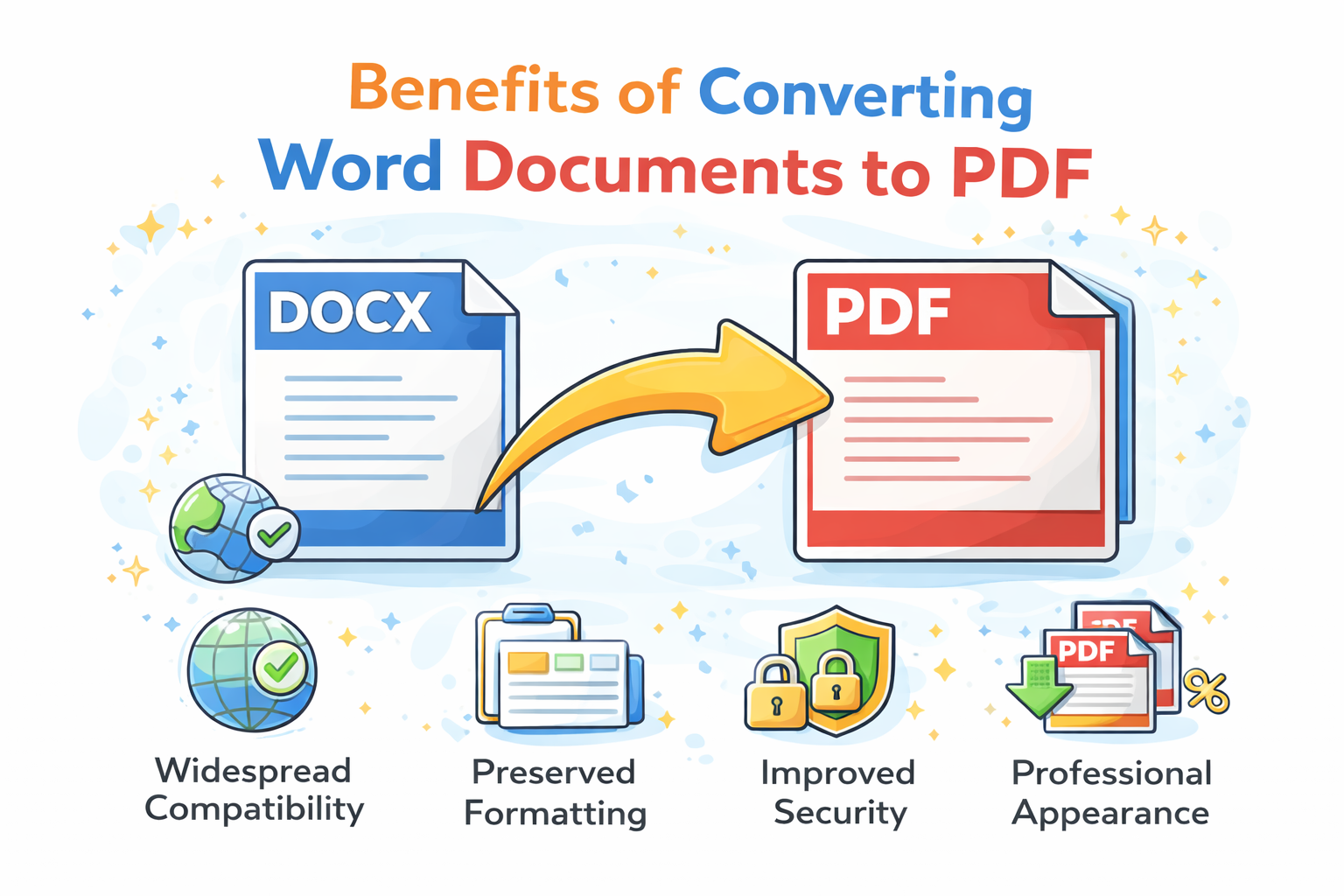
DOC vs DOCX vs PDF
DOC files use an older Microsoft Word format, while DOCX is the modern XML-based format introduced with newer versions of Word. PDF is designed for sharing and preserving finalized documents.
Who Uses Word to PDF Converters?
- Students
- Teachers and educators
- Business professionals
- Freelancers
- Law firms
- Government agencies
- HR departments
- Job seekers
- Consultants
- Researchers
Anyone who creates documents in Microsoft Word can benefit from converting files into PDF format before sharing or publishing them.
Common Use Cases
Resumes and CVs
Most employers prefer PDF resumes because formatting remains intact regardless of the software used to open the file.
Business Proposals
PDFs provide a professional presentation format for proposals, quotations, and client-facing documents.
Contracts and Agreements
Organizations often distribute contracts as PDFs to maintain consistent formatting and reduce accidental modifications.
Academic Assignments
Many schools and universities require PDF submissions to ensure documents appear correctly when reviewed.
Reports and Documentation
Businesses frequently convert reports into PDFs for distribution to stakeholders, clients, and management teams.
Why Professionals Prefer PDF Documents
PDF has become the standard format for professional document sharing because it preserves the exact appearance of a document regardless of operating system, device, or application.
While cloud-based editing platforms continue to evolve, PDF files offer a unique advantage: consistency. The recipient sees the same document layout regardless of operating system, device, software version, or screen size.
For professional communication, this consistency is critical. A resume that appears perfect in Word can look different on another computer due to font substitutions, margin changes, or compatibility issues.
Converting to PDF eliminates these risks and provides a standardized viewing experience.
Word to PDF vs Sharing DOCX Files
| Factor | DOCX | |
|---|---|---|
| Formatting Protection | Excellent | Moderate |
| Editing | Limited | Full Editing |
| Printing Accuracy | Excellent | Good |
| Professional Appearance | Excellent | Good |
| Compatibility | Universal | Software Dependent |
When Should You Use PDF Instead of Word?
PDF is usually the better choice when:
- The document is finalized.
- You want to prevent accidental formatting changes.
- You need consistent printing results.
- You are sharing documents with external parties.
- You are submitting applications, assignments, or reports.
- You need a professional presentation format.
Word documents remain preferable when active collaboration and editing are required.
Security and Privacy Considerations
PDF files can support additional security features such as password protection, encryption, and digital signatures.
If document security is important, you can also use PDF protection tools after conversion.
Is Online Word to PDF Conversion Safe?
A reliable online Word to PDF converter should process files securely and remove uploaded documents after conversion. Avoid uploading sensitive documents unless you trust the service handling your files.
Learn more about document privacy and file security in our guide: Are Online PDF Tools Safe?.
Related PDF Tools
- PDF to Word Converter
- Compress PDF Online
- Merge PDF Online
- Convert PDF Documents Online
- Free PDF Tools Comparison
- Best PDF Tools 2026
- Best Free PDF Tools
- Smallpdf Alternatives
- iLovePDF Alternatives
- Instantly transform your Word documents into high-quality PDF files
Frequently Asked Questions
Is Word to PDF conversion free?
Yes. You can convert DOC and DOCX files into PDF documents for free using our online converter.
Will formatting be preserved?
Yes. Fonts, images, tables, spacing, and page layouts are preserved whenever possible during conversion.
Can I convert DOC and DOCX files?
Yes. Both DOC and DOCX file formats are supported.
Can I convert Word documents on my phone?
Yes. The converter works on smartphones, tablets, laptops, and desktop computers.
Why do employers prefer PDF resumes?
PDF resumes maintain consistent formatting across different devices and operating systems.
Is my uploaded file secure?
Files are processed securely and should be automatically removed after conversion according to the platform’s file retention policy.
Can I convert Word to PDF without Microsoft Word?
Yes. An online Word to PDF converter lets you convert DOC and DOCX files without installing Microsoft Word.
Does Word to PDF conversion reduce quality?
No. A quality converter preserves document formatting, images, fonts, and page layouts.
Final Thoughts
A Word to PDF converter is an essential document productivity tool for students, professionals, businesses, and job seekers. Converting DOC and DOCX files into PDF format helps preserve formatting, improve compatibility, and create a more professional document-sharing experience.
Use the free converter above to transform Word documents into high-quality PDF files in seconds.