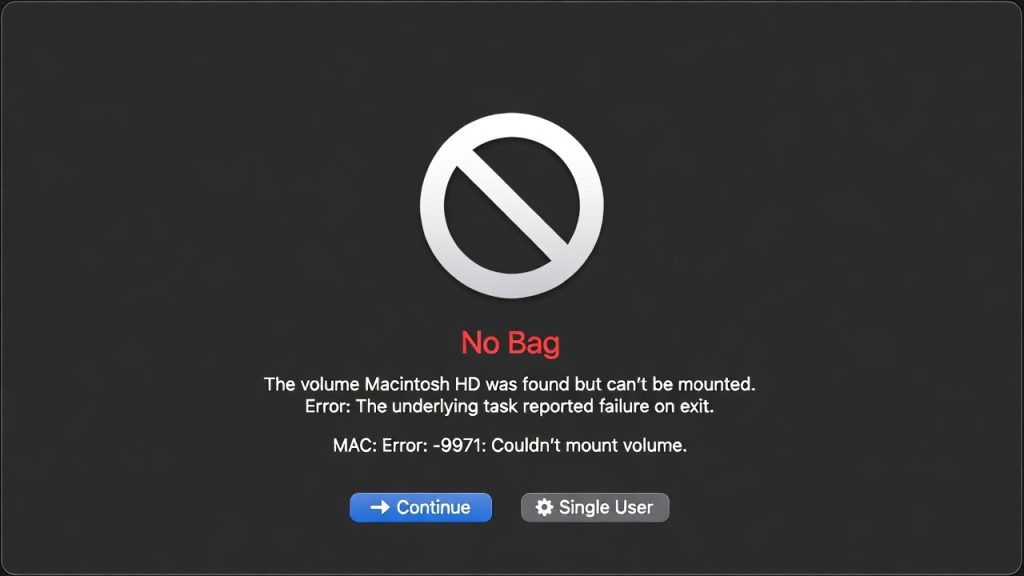
No Bag Entry Mac Error Fix: Why macOS Installation Fails in 2026

Introduction
No bag entry mac error fix has become a widely searched solution as more Mac users encounter installation failures while resetting or reinstalling macOS in 2026. The error typically appears during macOS installation and prevents the operating system from verifying installation packages.
Although the message looks technical and alarming, it usually does not indicate hardware failure. Instead, it is caused by security verification issues between your Mac and Apple’s installation servers.
This TechTrep Media guide explains what the error means, why it happens more frequently today, and how to permanently fix it using safe recovery methods.
What “No Bag Entry” Means
The “No Bag Entry” error occurs when macOS cannot validate the installer package required for installation. Modern macOS versions use cryptographic signatures to confirm authenticity before installation begins.
When verification fails, installation stops immediately.
This usually happens because:
- The installer certificate has expired
- The recovery environment is outdated
- The Mac system date is incorrect
- The downloaded installer is corrupted
- Internet verification fails during setup
Unlike older macOS versions, installation now depends heavily on online authorization.
Certificate Expiration Explained
Apple regularly rotates installation certificates for security reasons. Older recovery partitions may contain installers signed with certificates that are no longer valid.
When your Mac attempts installation:
- The installer contacts Apple servers
- Certificates are verified
- Authentication fails if certificates are outdated
This results in the “No Bag Entry” message.
The issue is especially common on Intel Macs manufactured before 2019 because their built-in recovery images are older.
Correct Internet Recovery Method
The most reliable no bag entry mac error fix is using Internet Recovery, which downloads a fresh installer directly from Apple.
Steps:
- Shut down the Mac completely
- Turn it on and immediately hold:
Option (⌥) + Command (⌘) + R
- Wait until a spinning globe appears
- Connect to Wi-Fi
- Allow recovery tools to load
This bypasses outdated recovery software and installs the latest compatible macOS version.
Disk Erase Requirements
If installation continues to fail, the disk structure may not match modern macOS requirements.
Follow these steps:
- Open Disk Utility
- Select View → Show All Devices
- Select the top internal drive
- Click Erase
Use these settings:
- Format: APFS
- Scheme: GUID Partition Map
- Name: Macintosh HD
After erasing, reinstall macOS again.
Prevention Tips
To avoid encountering this issue again:
- Update macOS before resetting your device
- Use stable internet during installation
- Verify system date and time in Recovery Mode
- Avoid interrupting installations
- Always sign out of iCloud before erasing
Understanding these steps reduces installation failures significantly.
Related Guides
Conclusion
The no bag entry mac error fix is usually straightforward once you understand that the problem stems from security verification rather than hardware damage. Internet Recovery combined with proper disk formatting resolves the majority of cases.
As Apple continues strengthening installation security, users resetting older Macs should expect verification-based installation processes to become standard moving forward.

Leave a reply