The Complete Mac Recovery Mode Problems 2026 Guide (Fix Every Startup Error)

Introduction
Mac recovery mode problems 2026 are becoming increasingly common as older Intel Macs and newer Apple Silicon devices transition through ownership changes, OS upgrades, and cloud-based verification systems.
Many users attempting to reset or sell their Macs encounter confusing errors like the question mark folder, installer verification failures, or stalled macOS downloads.
In this complete guide, TechTrep Media explains why these problems happen, what Apple changed, and how to fix every major recovery issue safely.
Why Mac Recovery Mode Problems Are Rising in 2026
Modern macOS installations now rely heavily on:
- Online certificate verification
- Apple server authentication
- Secure boot environments
- Internet-based installers
Unlike older offline installers, Macs today must confirm eligibility with Apple servers before installing macOS.
Common triggers include:
- Erased startup disks
- Incorrect system date
- Outdated recovery partitions
- Weak internet connection
- Corrupted installer certificates
Common Mac Startup Errors Users See
Folder With Question Mark
The Mac cannot locate a bootable operating system.
“No Bag Entry” Error
Installer package validation fails due to certificate mismatch.
Installer Eligibility Loop
The Continue button closes without starting installation.
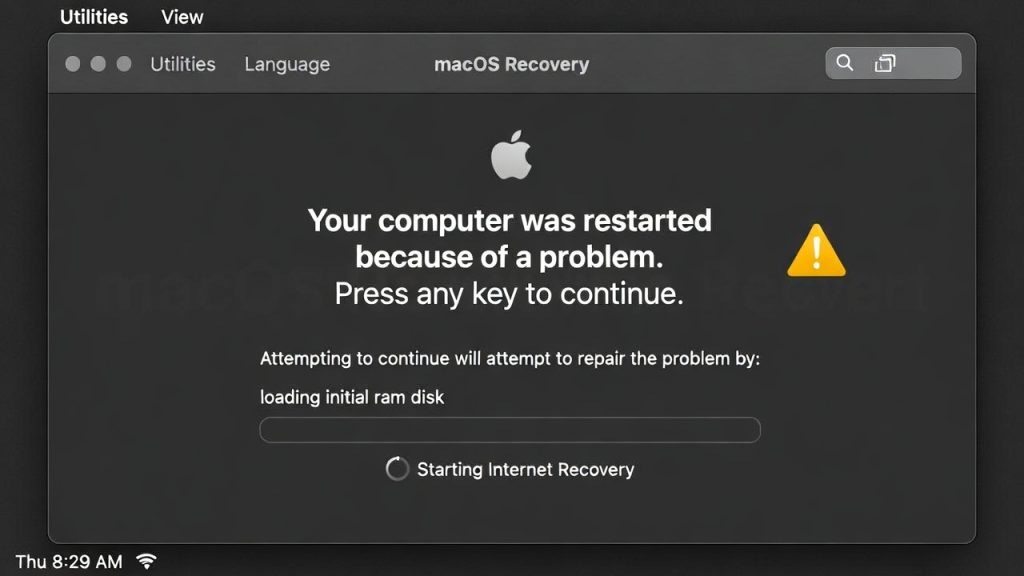
Internet Recovery Failure
Mac downloads recovery but installation never begins.
👉 Detailed fix:
Folder With Question Mark Mac Fix
How Internet Recovery Changed macOS Installation
Apple introduced Internet Recovery to:
- Prevent pirated OS installs
- Maintain device security
- Ensure latest compatible macOS installs automatically
Key Shortcuts
| Mode | Shortcut |
|---|---|
| Standard Recovery | Command + R |
| Latest macOS | Option + Command + R |
| Original macOS | Shift + Option + Command + R |
Internet Recovery downloads a fresh installer directly from Apple servers.

Step-by-Step Universal Fix (2026 Method)
Step 1 — Start Internet Recovery
Hold: Option + Command + R until spinning globe appears.
Step 2 — Erase Disk Properly
Disk Utility → Show All Devices → Erase top drive:
- APFS
- GUID Partition Map
Step 3 — Correct System Time
Wrong system time breaks Apple verification.
Use Terminal:
date MMDDHHMMYYStep 4 — Reinstall macOS
Select Macintosh HD and begin installation.
Why Apple’s Security Model Causes Confusion
Apple prioritizes security over simplicity:
- Installers expire
- Certificates rotate
- Offline recovery becomes invalid
This protects devices but creates friction for resale markets and DIY repairs.
The Bigger Trend: Digital Ownership Challenges
Tech analysts predict device recovery issues will increase because:
- Cloud authentication replaces local control
- Devices depend on vendor servers
- Older hardware loses compatibility faster
This represents a shift from device ownership → ecosystem dependency.
Preventing Future Recovery Problems
Before wiping your Mac:
- Sign out of iCloud
- Update macOS first
- Connect stable Wi-Fi
- Create bootable backup
- Verify system date
Internal Links

Leave a reply