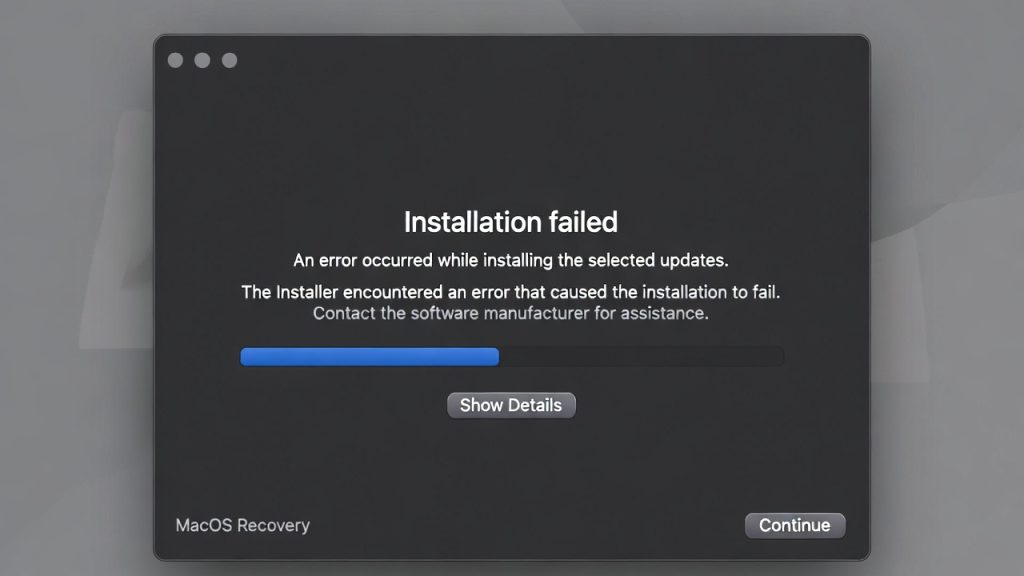
Why Mac Reinstall Fails: Hidden Reasons and Fixes in 2026
If you are searching for why Mac reinstall fails, the problem is usually not as simple as a damaged macOS installer. A Mac can fail to reinstall because of network restrictions, incorrect system settings, disk problems, installer verification errors, insufficient storage, incompatible recovery environments, or firmware-related issues.
Modern macOS recovery also relies on an internet connection to download macOS and obtain information needed for installation. That means a Mac can appear to be connected to Wi-Fi while still being unable to complete recovery successfully. Apple specifically notes that some captive portals, enterprise networks, 802.1X configurations, and other network setups can prevent macOS Recovery from installing macOS.
This guide explains the most common reasons a Mac reinstall fails in 2026, how to identify the specific failure, and what you should try before assuming the Mac has a hardware problem.

Why Does Mac Reinstall Fail?
A macOS reinstall can fail when Recovery cannot download, verify, prepare, or install the required system software. The most common causes include:
- Unstable or restricted internet connectivity
- Incorrect system date and time
- Installer verification or personalization problems
- Startup disk or APFS volume errors
- Insufficient available storage
- Unsupported or incompatible macOS versions
- Problems with the Recovery environment
- Firmware issues on Apple silicon or T2-equipped Macs
- Previously downloaded installers that are damaged or cannot be verified
Apple’s current troubleshooting guidance specifically recommends checking storage, internet connectivity, macOS Recovery, the startup disk, and—on some Macs—firmware when installation fails. Apple support
How macOS Reinstallation Actually Works
Understanding the installation process makes it easier to understand why a reinstall can fail.
When you choose Reinstall macOS from Recovery, the Mac does more than copy files from a local recovery partition. The computer must connect to the internet and obtain the software and information required for installation.
On Intel Macs, the recovery method you use also affects which macOS version is offered:
- Command-R: reinstalls the current or most recently installed compatible macOS from the built-in Recovery system.
- Option-Command-R: uses Internet Recovery and can install the latest macOS compatible with the Mac.
- Option-Shift-Command-R: uses Internet Recovery to offer the macOS version that originally came with the Mac, or the closest available version.
Apple silicon Macs use a different Recovery startup process, but they also require an internet connection for macOS reinstallation. Apple Support
1. Internet Recovery or Network Problems
One of the most common reasons a Mac reinstall fails is a network problem. The Mac may show that it is connected to Wi-Fi while Recovery is still unable to communicate correctly with the services required for installation.
Common network problems include:
- Weak or unstable Wi-Fi
- Captive-portal networks
- Corporate or school networks
- 802.1X authentication requirements
- PPPoE configurations that Recovery cannot handle directly
- DNS or firewall restrictions
- Temporary connectivity problems
Apple recommends using a broadband connection through Wi-Fi or Ethernet and notes that some network configurations can prevent installation from Recovery.
What to try
- Connect to a reliable home Wi-Fi network.
- Try Ethernet if available.
- Try a different network.
- Avoid networks requiring browser-based login.
- Keep the Mac connected to power during installation.
- Restart Recovery and try again.
If Internet Recovery displays a globe with a warning symbol or numbered errors such as -2001F, -2002F, or -2003F, Apple says these are generally related to network or internet connection problems. Apple support
2. Incorrect Date and Time Can Break Verification
Incorrect system time can interfere with secure connections and software verification. This is particularly relevant on older Macs that have been stored for long periods or whose internal clock has not been synchronized correctly.
Why the Mac’s date matters
Digital certificates and secure connections depend on valid time information. If the system date is significantly wrong, software that depends on secure verification can behave unexpectedly.
Common reasons the clock may be wrong:
- A Mac has been unused for an extended period.
- The battery was completely discharged.
- The startup disk was erased.
- The Mac is running an older Recovery environment.
- The computer has not successfully synchronized its time online.
If installation repeatedly fails with verification-related messages, checking the date and time in Recovery’s Terminal can be a useful diagnostic step.
However, incorrect time should not be treated as the only explanation. Apple’s current installation troubleshooting guidance lists several other possible causes, including network, storage, disk, installer, and firmware problems. Apple support
3. The Installer Cannot Be Verified
Another common reason a Mac reinstall fails is an installer verification problem. You may see messages indicating that the software is damaged, cannot be verified, failed to personalize, or encountered an error while downloading or preparing.
This does not necessarily mean that the Mac itself is defective.
Possible causes include:
- Incomplete installer downloads
- Network interruptions
- Problems with the Recovery environment
- Incorrect system time
- Damaged previously downloaded installers
- Compatibility or installation-state problems
Apple recommends deleting a previously downloaded installer that is reported as damaged or unable to be verified and downloading the installer again from Apple after addressing any disk issues. Apple support
4. The Startup Disk Has Errors
A Mac can also fail to reinstall because the startup disk or APFS volume has a problem.
If Recovery cannot properly access, erase, or install to the selected disk, reinstalling macOS may stop before the installation completes.
Symptoms of a disk-related problem may include:
- The installer cannot find the startup disk.
- The expected Macintosh HD volume is missing.
- Disk Utility cannot erase the volume.
- Installation repeatedly fails at the same stage.
- Disk Utility reports errors during First Aid.
Apple recommends opening Disk Utility from macOS Recovery and repairing the startup disk when appropriate. If Disk Utility cannot see or erase the disk, Apple notes that the Mac may require service. Apple support
5. Not Enough Storage Space
A macOS installation also needs sufficient storage space to download, prepare, and install system files.
If the installer reports that there is not enough storage, free up space before attempting the installation again.
When the existing system cannot boot normally, Disk Utility in macOS Recovery can help you inspect the internal storage and determine whether the volume is available.
Apple lists insufficient storage as one of the first things to check when an update or installation fails. Apple support
6. The Mac Is Not Compatible With the macOS Version
Not every Mac can run every macOS release. This becomes particularly important with older Intel Macs.
If you use Internet Recovery, the keyboard shortcut you choose affects which version of macOS Recovery attempts to offer. Apple states that Option-Command-R attempts to install the latest macOS compatible with the Mac, while Shift-Option-Command-R attempts to install the original macOS version or the closest version still available. Apple support
This distinction matters when troubleshooting an older Mac. A failed attempt to install one version does not necessarily mean the hardware is unusable.
7. Older Recovery Environments Can Complicate Reinstallation
Older Intel Macs can present additional complications because they may rely on recovery environments that were created years ago.
Instead of assuming that the local Recovery environment is always the best option, try Internet Recovery when appropriate.
On Intel Macs, Apple provides separate startup combinations for local Recovery and Internet Recovery. If built-in Recovery cannot start successfully, Apple recommends trying Internet Recovery and, if necessary, another network connection. Apple support
This is particularly useful when troubleshooting a Mac that has been unused for several years.
8. Apple Silicon and T2 Macs Have Additional Firmware Dependencies
Not every macOS installation failure is caused by the operating system itself.
On Macs with Apple silicon or the Apple T2 Security Chip, firmware can sometimes be involved in persistent installation problems.
Apple says that, in rare cases, a Mac with Apple silicon or the Apple T2 Security Chip may require a firmware revive or restore to resolve a persistent macOS installation issue.
This is an advanced recovery procedure and should not be the first troubleshooting step for an ordinary reinstall failure.
9. You May Be Erasing the Wrong Volume
Another common mistake is erasing or selecting the wrong volume during recovery.
When reinstalling macOS without intentionally performing a full factory reset, the goal is normally to reinstall onto the current macOS system volume.
Apple’s current instructions specify selecting the current macOS volume during installation. On many systems this is shown as Macintosh HD.
If the Mac displays both Macintosh HD and Macintosh HD – Data, selecting the appropriate system volume matters.
10. Erasing a Mac Is Different From Reinstalling macOS
Reinstalling macOS and completely resetting a Mac are not always the same operation.
A standard macOS reinstall can preserve your files and user settings. Apple recommends a different process for preparing supported Macs for sale, trade-in, or transfer.
On Apple silicon Macs and Intel Macs with the T2 Security Chip, Apple recommends using Erase Assistant when resetting the Mac for a new owner.
This distinction is important because unnecessarily erasing the startup disk can turn a simple reinstall into a more complicated recovery process.
How to Fix a Mac Reinstall That Keeps Failing
If your Mac repeatedly fails during reinstallation, work through the following sequence rather than randomly changing settings.
Step 1: Back Up Your Data
If the Mac can still boot, back up important files before making changes to the startup disk.
Apple also recommends backing up your Mac before reinstalling whenever possible.
Step 2: Check the Internet Connection
- Use reliable Wi-Fi.
- Try Ethernet if available.
- Try another network if Recovery fails.
- Avoid captive portals and restricted enterprise networks.
Step 3: Start macOS Recovery Again
For Apple silicon Macs, shut down the Mac, then press and hold the power button until startup options appear. Select Options and continue into Recovery.
For Intel Macs, restart and hold Command-R. If local Recovery is not working, try Option-Command-R for Internet Recovery.
Step 4: Run Disk Utility First
Open Disk Utility and check whether the internal storage is visible.
If appropriate, run First Aid before attempting another installation.
Step 5: Check the System Date and Time
If the installation produces verification-related errors, confirm that the Mac’s system clock is correct before retrying.
Step 6: Try Internet Recovery on Intel Macs
If the built-in Recovery environment appears outdated or unreliable, use Internet Recovery.
Apple provides these options:
- Option-Command-R: latest compatible macOS
- Shift-Option-Command-R: original macOS or closest available version
Step 7: Check for Storage or Firmware Problems
If the disk is missing, cannot be erased, or installation repeatedly fails despite a good network connection, the issue may require deeper hardware or firmware troubleshooting.
For persistent problems on Apple silicon or T2 Macs, Apple notes that firmware revive or restore may sometimes be necessary.
Mac Reinstall Failure: Quick Troubleshooting Table
| Symptom | Likely Cause | What to Try |
|---|---|---|
| Internet Recovery fails with a numbered error | Network connection problem | Try another Wi-Fi network or Ethernet |
| Installer says software cannot be verified | Installer, time, or verification problem | Check date/time and download the installer again |
| Macintosh HD is missing | Disk or volume issue | Open Disk Utility and inspect the internal drive |
| Not enough storage | Insufficient disk space | Free storage or erase the disk if appropriate |
| Installation fails repeatedly at the same point | Disk, installer, network, or firmware issue | Check Disk Utility, network, and Recovery method |
| Apple silicon/T2 Mac remains stuck after repeated attempts | Possible firmware problem | Consider firmware revive/restore or Apple Support |
What Not to Do When macOS Reinstall Fails
- Do not repeatedly erase the disk without backing up important data.
- Do not assume every installation failure means the SSD is dead.
- Do not use a restricted corporate or captive-portal network if Recovery cannot authenticate.
- Do not immediately attempt advanced firmware recovery unless simpler troubleshooting has failed.
- Do not install an unsupported macOS version simply because it is newer.
- Do not confuse a standard reinstall with a factory reset.
When a Mac Reinstall Failure May Indicate Hardware Trouble
Software and Recovery problems are common, but hardware cannot be ruled out.
You should consider professional service when:
- Disk Utility cannot see the internal storage.
- The internal drive repeatedly disappears.
- Disk Utility cannot repair or erase the drive.
- The Mac repeatedly fails despite a reliable network and correct Recovery procedure.
- The Mac shows persistent startup or firmware errors.
- Installation fails consistently after replacing the installer and checking the disk.
Apple states that if Disk Utility cannot see or erase the startup disk, the Mac may need service.
Related Mac Troubleshooting Guides
- Mac Recovery Mode Problems 2026: Complete Troubleshooting Guide
- No Bag Entry Mac Error: Causes and Fixes
Conclusion: Why Mac Reinstall Fails
Understanding why Mac reinstall fails requires looking beyond the installer itself.
The failure may come from the network, system date and time, installer verification, available storage, the startup disk, macOS compatibility, the Recovery environment, or—in less common cases—firmware.
The safest approach is to troubleshoot systematically: confirm your network, start the correct Recovery environment, inspect the startup disk with Disk Utility, verify the system clock, and then retry the installation.
If the disk cannot be detected or erased, or persistent installation failures continue after the software and network checks have been completed, the problem may require hardware or firmware service.
The key lesson is simple: a failed macOS reinstall does not automatically mean your Mac is dead. In many cases, identifying the exact point of failure is enough to get the installation working again.
Mac Reinstall Problems: Frequently Asked Questions
Why does my Mac reinstall keep failing?
Mac reinstall failures can be caused by network problems, incorrect system time, installer verification errors, insufficient storage, startup-disk problems, incompatible macOS versions, Recovery issues, or firmware problems on some Macs.
Does Internet Recovery fix macOS installation problems?
Internet Recovery can help when the built-in Recovery environment is outdated or unavailable, particularly on Intel Macs. It downloads the recovery environment and installation resources over the internet. Apple provides different Internet Recovery options depending on the macOS version you want to install.
Can poor internet cause macOS reinstall failure?
Yes. macOS Recovery requires an internet connection to reinstall macOS, and certain restricted networks can prevent installation from completing. Trying another Wi-Fi network or Ethernet connection can help.
Why does my Mac say the installer cannot be verified?
Verification errors can be related to the installer, system date and time, network connectivity, or other installation problems. If a previously downloaded installer is reported as damaged or unable to be verified, Apple recommends downloading it again after addressing disk issues.
What should I do if Macintosh HD is missing during reinstall?
Open Disk Utility from macOS Recovery and check whether the internal storage and expected volumes are visible. If Disk Utility cannot see or erase the startup disk, the Mac may require service.
Can an old Mac still reinstall macOS?
Yes, provided the Mac supports the macOS version being installed and the required Recovery method works. On Intel Macs, Internet Recovery can offer the latest compatible macOS or the original macOS version depending on the startup key combination used.

Leave a reply